06 · AI voice + Plugin Builder
Add AI where it helps operators — without mashing every AI feature into one hero. Walk five separate stories on the same show graph as Action Deck and cartwall. Stills below are real Community 1.0.190 captures from the demo box (Demo Grok).
Five stories (keep them separate)
| # | Story | Outcome | Path |
|---|---|---|---|
| 1 | Voice LLM | Talk / page on intercom; ask room status; assistants call cues you already trust | AI → Assistant and/or I/O → Add Endpoint → Voice LLM (voice-llm); mic Talk needs HTTPS or localhost |
| 2 | ElevenLabs SFX / TTS | Generate short audio into Library / cartwall via SFX Generation | Gated until an I/O → Add Endpoint provider (e.g. ElevenLabs) exists; empty SFX Generation is expected beforehand |
| 3 | On-prem MCP | Local MCP assistants drive the same graph as UI / OSC / HTTP / CLI | AI → MCP (/mcp) — title MCP Server; Enable starts off (/mcp answers 404 until on) |
| 4 | Cloud MCP | Remote MCP against a Cloud-capable ShowServer you already operate | Same MCP field family; prefer on-prem first |
| 5 | Plugin Builder | Ask AI to script a bridge; review under Automation | AI → Plugin Builder (/plugin-builder) |
Reference: AI. MCP: API / MCP overview.
Before you start
- Steps 01–03 done (Action Deck with GO / STOP / House / Bits — or loaded Blue Lamp — Theater Show).
- Prefer finishing 04 first if audio routing still fails — AI will not fix a missing sink.
- Prefer keeping experimental Voice / AI tiles off Action Deck page 1 until operators trust them (Control). If a sample deck already shows Voice Agent on page 1, park it to a later page.
- Sample labels (when you build or load Blue Lamp — Theater Show at Blue Lamp Theater): Action Deck AI / Voice tiles; Cartwall Alerts → Intercom Chime. Fresh Default does not guarantee those tiles — add them yourself if missing.
Steps
A · Voice LLM on intercom (story 1)
- Enable Voice LLM either way (Community 1.0.190):
- AI → Assistant, and/or
- I/O → Add Endpoint → provider Voice LLM (
voice-llm)
- On Control → Action Deck, add a Voice tile on a later page (not page 1 until trusted): empty cell → inspector Add button → Label
Voice→ Actions → event tab Press → Add action → bind the intercom / Voice LLM listen action from the catalog. - Open AI → Assistant → Voice. Pick your Voice LLM agent (demo still: Demo Grok Voice LLM). Outcome: page crew or ask room status from the same show graph as GO / STOP — not a side chatbot with private state.
- Mic honesty: browser Talk needs a secure context. If you see “Microphone access requires a secure connection. Open the console over HTTPS (enable it under Settings → Network) or from localhost.” — that warning is real; enable HTTPS or open from localhost before expecting Talk to work.
- Optional: fire Cartwall Alerts → Intercom Chime (create that page/tile only if you want the Alerts set; not required).
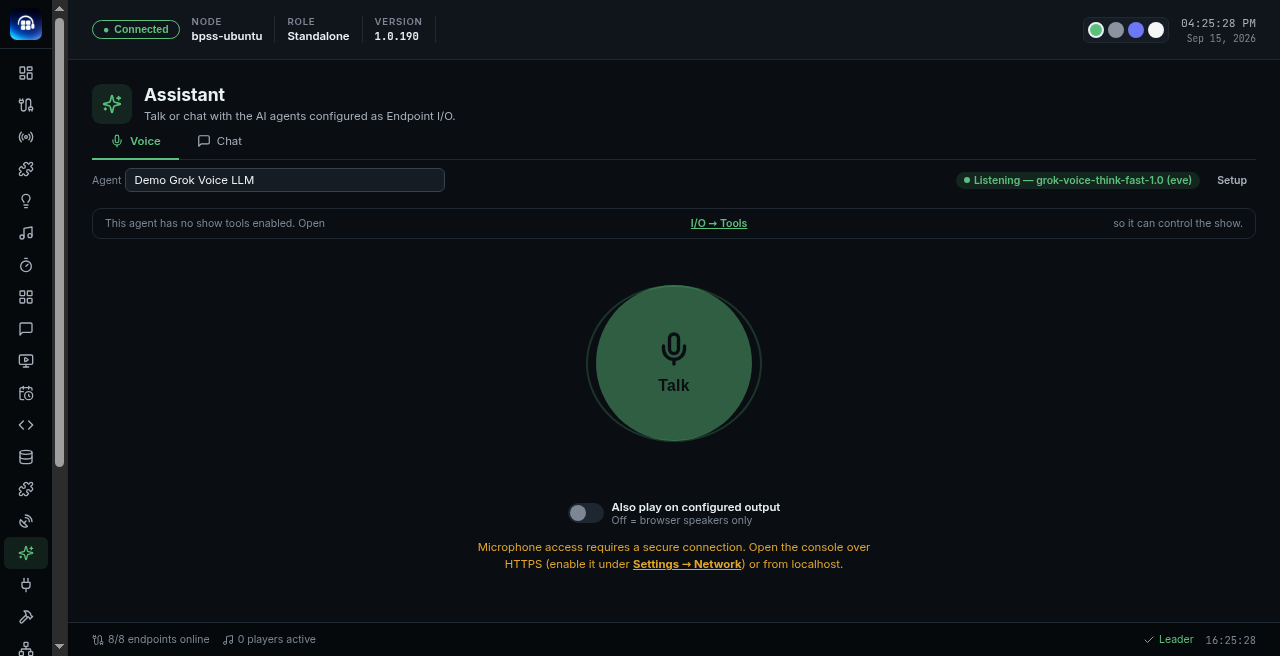
AI → Assistant → Voice — Demo Grok Voice LLM Listening. Talk is gated until HTTPS or localhost.
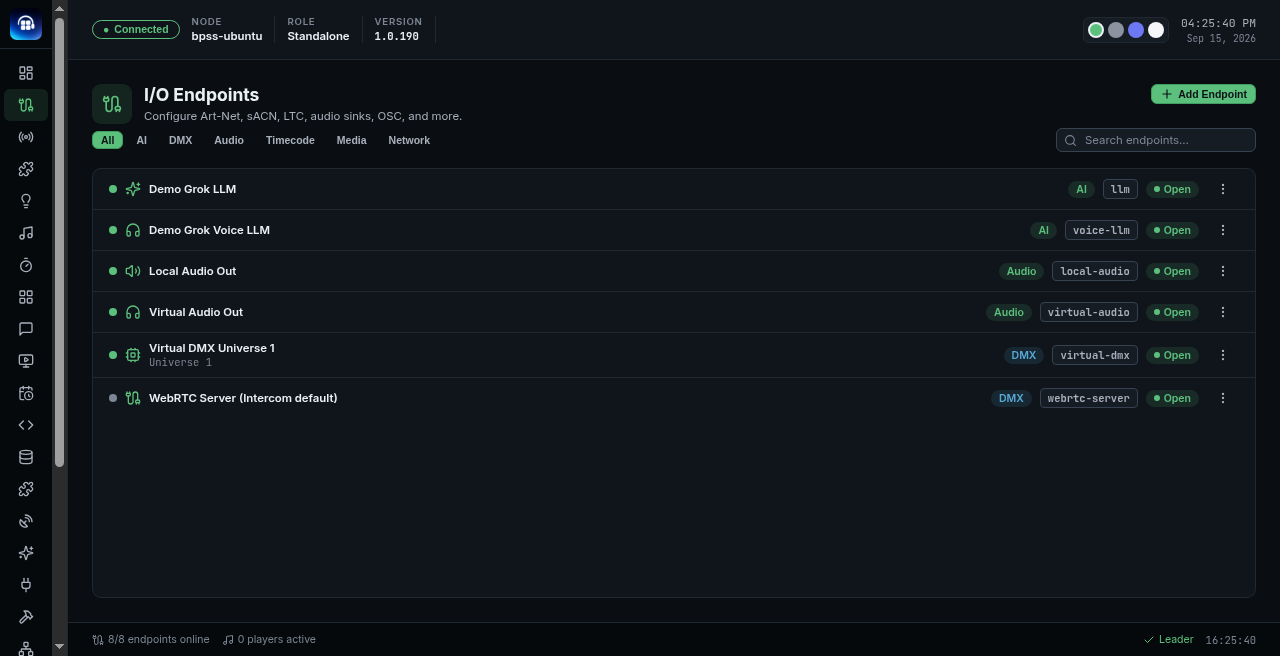
Optional supporting still: I/O Endpoints with Demo Grok LLM + Demo Grok Voice LLM green/Open.
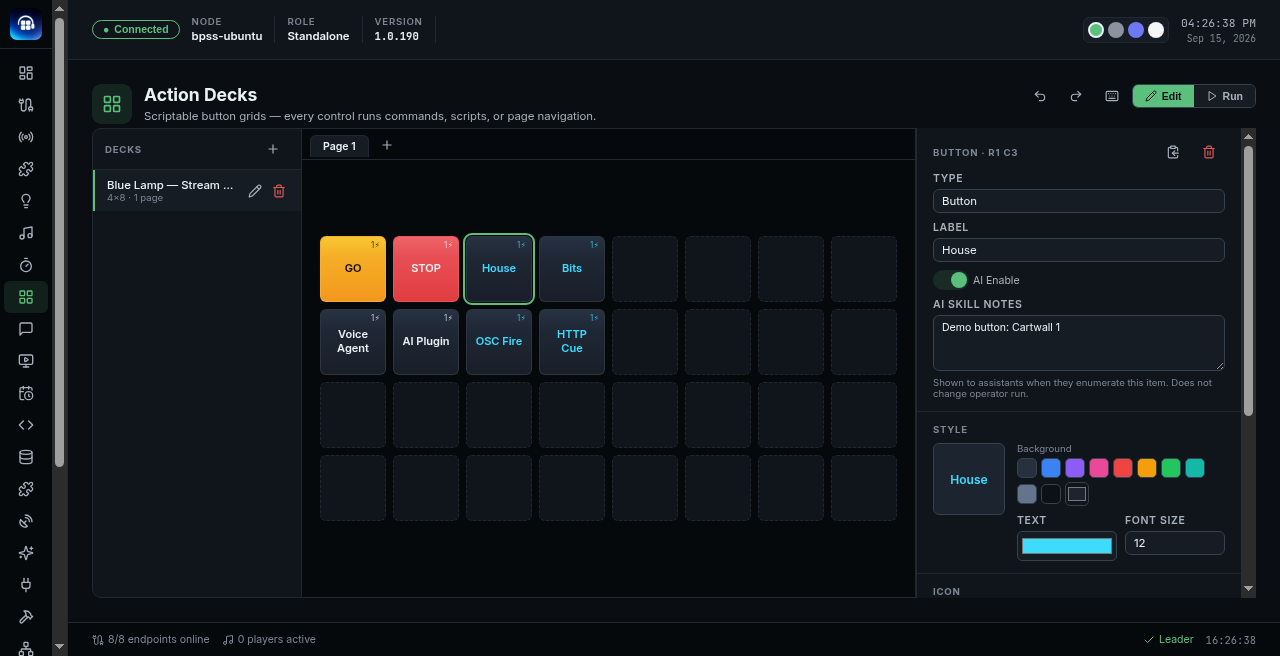
Caution only: some FTU/demo decks still place Voice Agent on page 1 of a Blue Lamp Theater sample. Prefer AI / Voice off page 1 until trusted — do not treat page-1 Voice as the target layout.
B · ElevenLabs SFX / TTS (story 2) — optional
- I/O → Add Endpoint → ElevenLabs and enter the API key (local to your box — never paste keys into docs or chat).
- Open Control → Audio → SFX Generation (this is not Cloud SFX). Until a compatible provider endpoint exists, the page stays empty: “No SFX generation providers configured” — that gate is expected; do not invent a pre-wired ElevenLabs flow.
- After a provider is Open: Generate, then land the clip in Library and/or Add to Cartwall — same show-graph path as bring-your-own Upload (Import audio & play an SFX).
- Do not treat Cloud SFX Add to Library as the required 03 path; first-timers still use Library → Upload.
- Skip this story if you are not wiring ElevenLabs — that is fine.
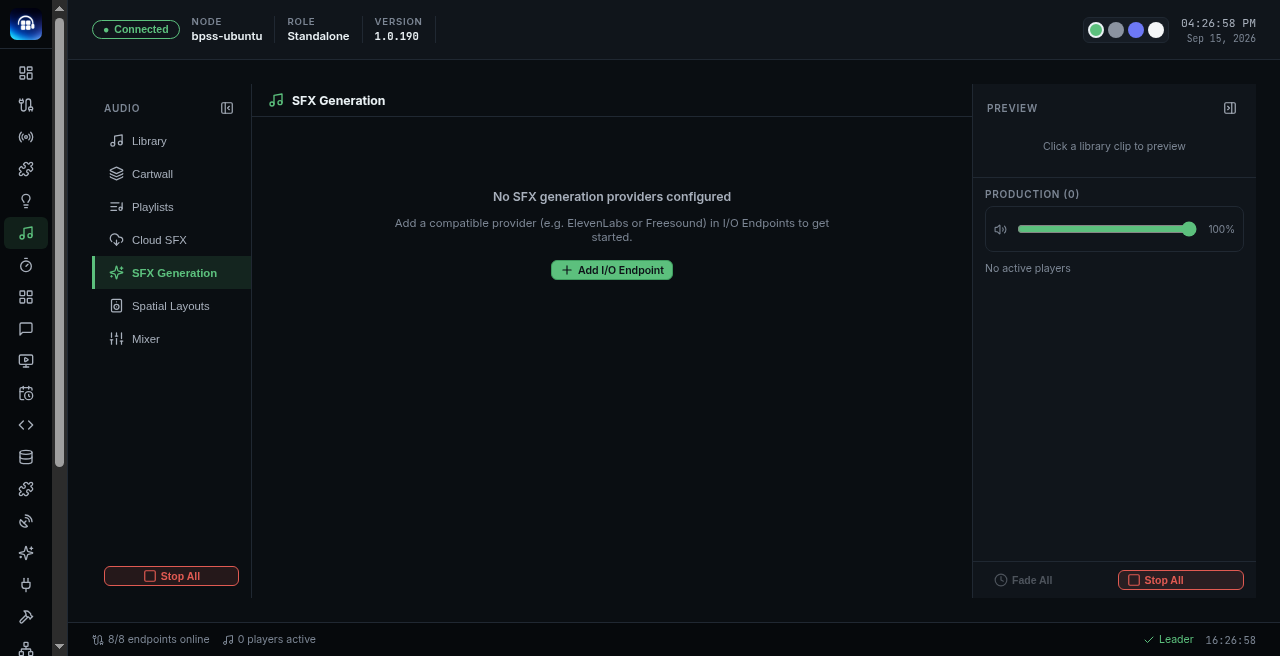
Optional supporting still: SFX Generation empty until ElevenLabs (or another compatible provider) is added under I/O Endpoints.
C · On-prem MCP (story 3)
- Open AI → MCP (
/mcp). Page title: MCP Server. - Honesty: Enable starts off. While disabled,
/mcpanswers 404 — connection details and tool permissions become active only after you turn Enable on (no restart needed). - Configure:
- Enable MCP server
- MCP URL
- Transport (Streamable HTTP)
- Require bearer token
- Access token (keep it on the box — regenerate invalidates the old token)
- Set Tool policy to one of: No tools / Code Mode / Full catalog / Custom. Fresh / cautious demos often start at No tools (clients can connect;
tools/listis empty). - Point a local / on-prem MCP client at the MCP URL shown on that page.
- Outcome: the assistant lists or fires existing cues / tiles — prefer calling Action Deck / Automation you already trust over inventing a parallel cue list.
- Keep Community demos on on-prem MCP. Do not send first-timers to Cloud MCP.
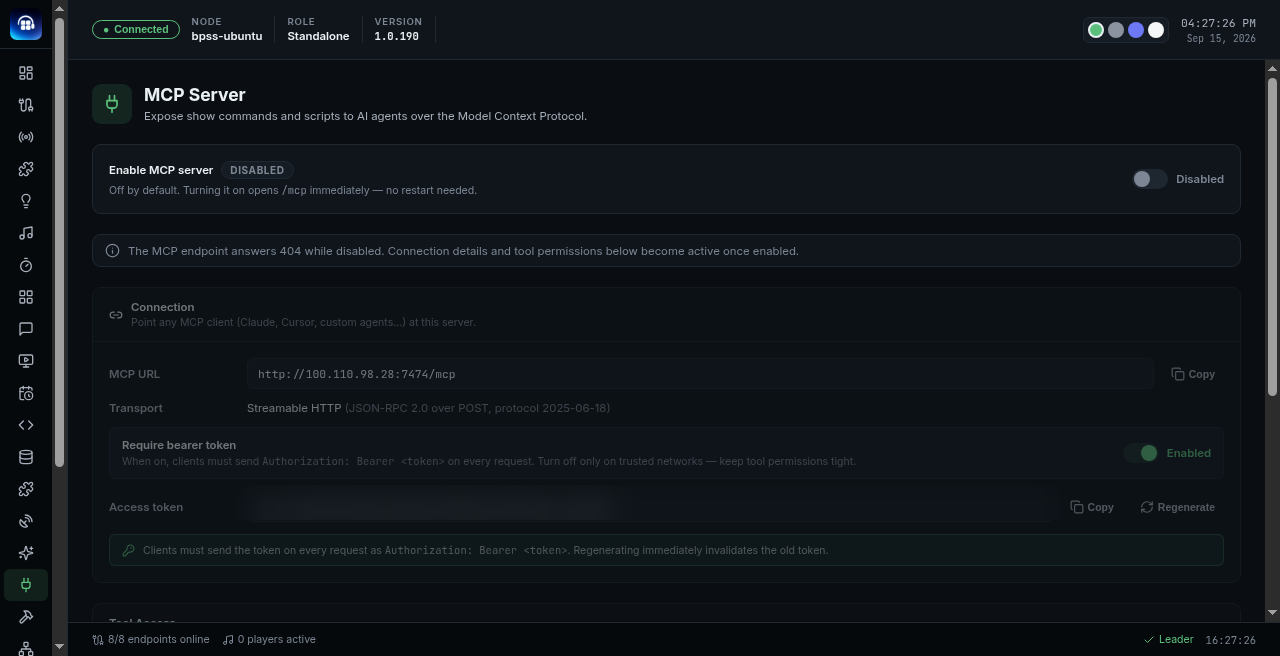
AI → MCP Server — Enable off by default; /mcp 404s until enabled. Bearer token stays masked in captures.
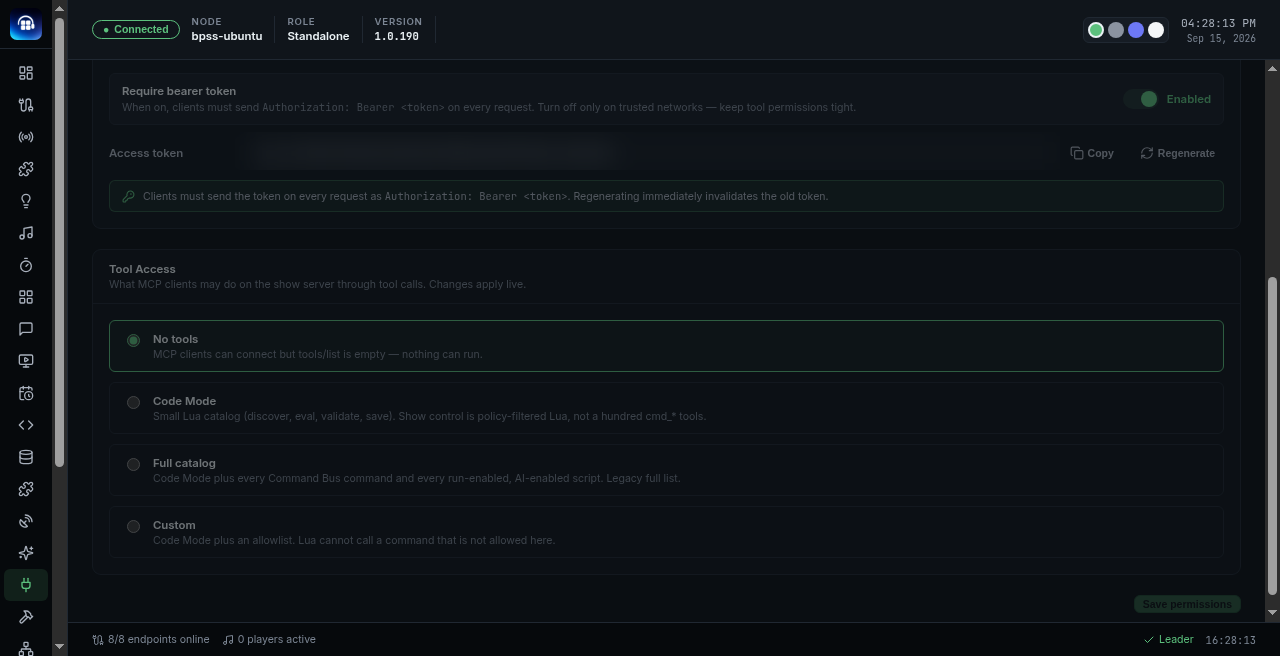
Tool Access policy: No tools / Code Mode / Full catalog / Custom — changes apply live.
D · Cloud MCP (story 4)
- Prefer finishing on-prem MCP Server first (story C).
- If you already operate a Cloud-capable ShowServer, connect Cloud MCP against that deployment’s MCP endpoint (same field family as on-prem MCP Server). See Remote / Cloud studio.
- Outcome: remote assistants hit the same show graph.
- Community Free from Download can stop after on-prem MCP.
E · Plugin Builder (story 5)
- Open AI → Plugin Builder (
/plugin-builder). Fresh install empty state: No plugins in progress — start with + New Plugin. - Ask AI to script a bridge for a missing native endpoint (seasonal example: Light-O-Rama via Plugin Builder; Twinkly + WLED stay first-class RGB(W) in I/O).
- Review the generated script under Automation. Keep it readable owned show logic — reject mystery meat you would not run on show night.
- Optional: bind a later-page Action Deck AI tile that opens or runs the plugin once operators trust it.
- Keep Twinkly + WLED endpoint control in I/O; use Plugin Builder to extend, not replace, that path.
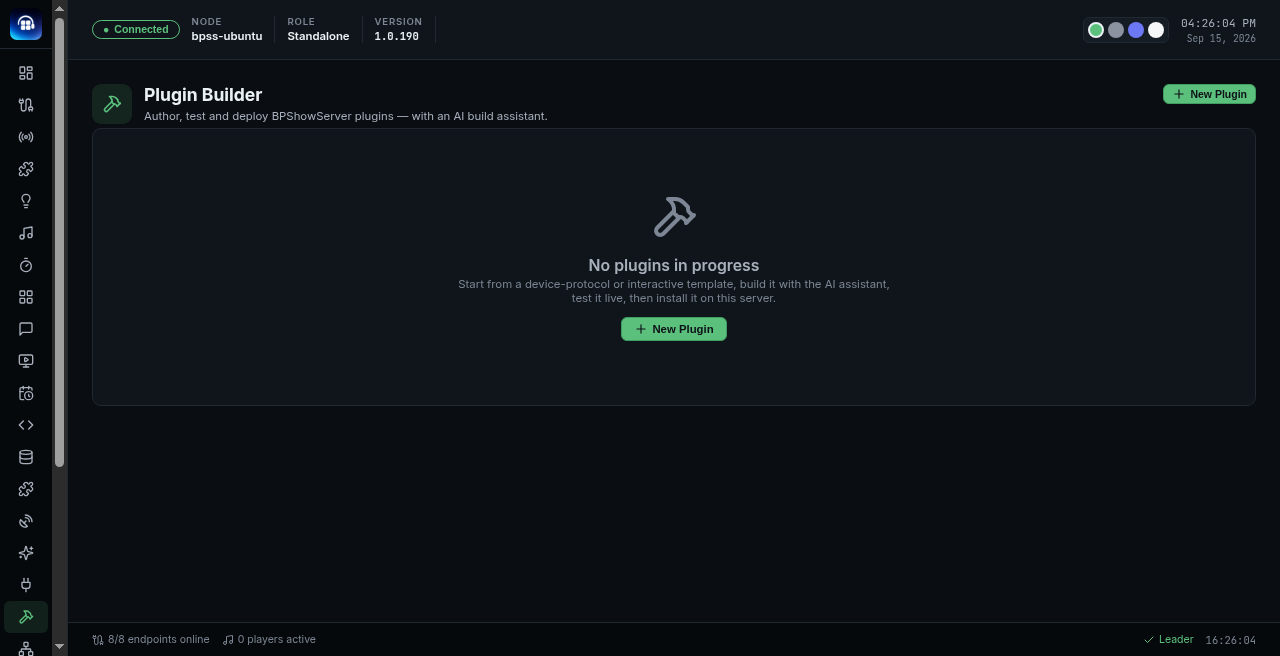
AI → Plugin Builder empty state — author, test, and install from + New Plugin.
Checks
| Check | Expect |
|---|---|
| Stories stay separate | Voice LLM ≠ ElevenLabs ≠ on-prem MCP ≠ Cloud MCP ≠ Plugin Builder |
| Voice | AI → Assistant and/or I/O → Add Endpoint → Voice LLM (voice-llm); Talk needs HTTPS or localhost |
| ElevenLabs | Provider endpoint first — else SFX Generation empty; then Control → Audio → SFX Generation (not Cloud SFX) |
| MCP | AI → MCP (/mcp) MCP Server; Enable off → /mcp 404 until on |
| Plugin Builder | AI → Plugin Builder (/plugin-builder) — empty until + New Plugin |
| Page 1 | Voice / AI stay off page 1 until trusted |
| Cloud MCP | Only if you already run Cloud-capable ShowServer — prefer on-prem MCP first |
Pick at least one of stories 1 / 3 / 5 (Voice LLM, on-prem MCP, or Plugin Builder). Keep the five stories separate — Cloud MCP can stay skipped on Community Free.